


A WiFi QR code for guests saves you from spelling a password out loud every time someone visits. Guests point their phone camera at a printed card, tap the prompt and they are online. The catch is that the code is not a lock: it carries your network name and password as plain text, it never changes on its own and anyone who photographs it can read it. This guide covers how to set one up properly at home, in a holiday rental, a café or an office: which network it should point to, when to change the password, where to place the card and how to print it so it scans the first time. When you are ready, our free WiFi QR code generator makes the code in your browser, so the password is never sent anywhere.
Give Guests One Page for Everything Else
A free VISU Link page can hold your house rules, menu, check-out time and contact links, with its own QR code to print next to the Wi-Fi card.
What a WiFi QR Code for Guests Actually Contains
A WiFi QR code is not a link to a website. It is a short piece of text in a format proposed by the open-source ZXing barcode project and now read by most phone cameras. It looks like this:
WIFI:T:WPA;S:CafeGuest;P:long-guest-passphrase;;
When a phone camera reads that text, it recognizes the WIFI: prefix and offers to join the network. Each field has a single job:
| Field | What it holds | What goes wrong |
|---|---|---|
T | Security type: WPA, WEP or nopass for an open network | Choosing the wrong type makes the join fail even with the right password |
S | The network name (SSID) | A capital letter or space that differs from the router setting points the phone at a network that does not exist |
P | The password, in plain text | Anyone with a QR reader can see it |
H | Optional: true if the network name is hidden | Leaving it out for a hidden network means the phone may not find it |
Three practical consequences follow from that format. First, reading the code needs no internet connection: everything the phone needs is inside the code. Second, the code is static. There is no server in the middle, so it cannot be edited, tracked or switched off. Third, special characters need care. The format uses the semicolon, comma, colon, double quote and backslash as markers, so a password containing them has to be escaped with a backslash. A good generator does that for you, which is one more reason not to type the code text by hand.
How to Set It Up Step by Step
- Decide which network guests should use. Ideally a separate guest network, covered in the next section. Do this first, because the code depends on it.
- Copy the network name exactly. Open the Wi-Fi list on your phone and type the name as it appears there, with the same capitals, spaces and symbols. Network names are limited to 32 bytes, and accented letters or emoji use more than one byte each.
- Pick the security type. Almost every current router uses WPA2, WPA3 or a mix of both, and all of them go in as
WPA. The phone and the router agree on the exact version when the guest joins. If your network is set to WPA3 only, test on an Android phone before printing. - Generate the code. Type the name and password into our WiFi QR code generator, tick "hidden network" only if your router really hides the name, and download it as PNG or SVG, or print the ready-made card.
- Test before printing many copies. Scan the code with two different phones, ideally one iPhone and one Android, and check that both actually connect. A code that opens a "join network" prompt but then fails usually has a typo in the name or password.
Keep a copy of the file somewhere you can find it. If the card gets wet or lost, reprinting takes a minute when the file is at hand.
Point the Code at a Guest Network
The most important decision is not the design of the card. It is which network the code opens. A printed WiFi code is a password on public display, so it should only ever unlock a network you are comfortable sharing with whoever photographs it.
The US National Security Agency's guide to securing a home network puts it plainly: at a minimum, a wireless network should be segmented between the primary Wi-Fi, a guest Wi-Fi and a network for smart devices, so that less secure devices cannot talk directly to more trusted ones. Many routers, including many supplied by internet providers, have a guest network option, usually in the router's app or admin page.
- Home. Your laptops, printers and smart speakers stay on the main network. Visitors get the guest network, and the code on the fridge points there.
- Holiday rental. The guest network is the only one guests ever see. Keep any smart lock hub, camera or thermostat on a separate network.
- Café or shop. The card machine, the register and any security cameras should never share a network with customers.
- Office. Visitors use the guest network. Staff networks with individual logins (WPA2-Enterprise or WPA3-Enterprise) are not a good fit for a printed code at all.
Two settings make the guest network itself stronger. Use WPA3, or the mixed WPA2/WPA3 mode if some guests have older phones; the NSA guide recommends exactly that. And use a long passphrase: the same guide suggests at least twenty characters. Phone users never type it, thanks to the QR code. For guests on laptops, a passphrase made of a few plain words is easier to copy than random characters. WPA passwords can be 8 to 63 characters long, so there is room.
Two things to avoid. WEP is an obsolete security mode with well-known weaknesses; if your router still offers it, switch to WPA2 or WPA3 before you print anything. And hiding the network name does not make it safer. The NSA guide notes that a hidden network name adds no real security and may cause compatibility problems, which is the last thing a guest at your door needs.
When to Change the Password and Reprint
Because the password is written into the code, changing it means printing a new card. There is no way around this: a dynamic QR code can only point to web addresses, so it cannot hold Wi-Fi details. That makes it worth deciding in advance when you will change the guest password, instead of doing it in a panic.
Sensible moments to change it:
- After someone posts the code online. A photo of the café table on social media can include the card. If the code is readable in the picture, the password is public.
- When a long-stay guest or a staff member leaves, if the same network is used for anything beyond basic browsing.
- On a fixed schedule for rentals. Some hosts change the guest password between stays, others once a season. Either way, it is easier when the schedule is set.
- When you notice unknown devices on the guest network in your router's app.
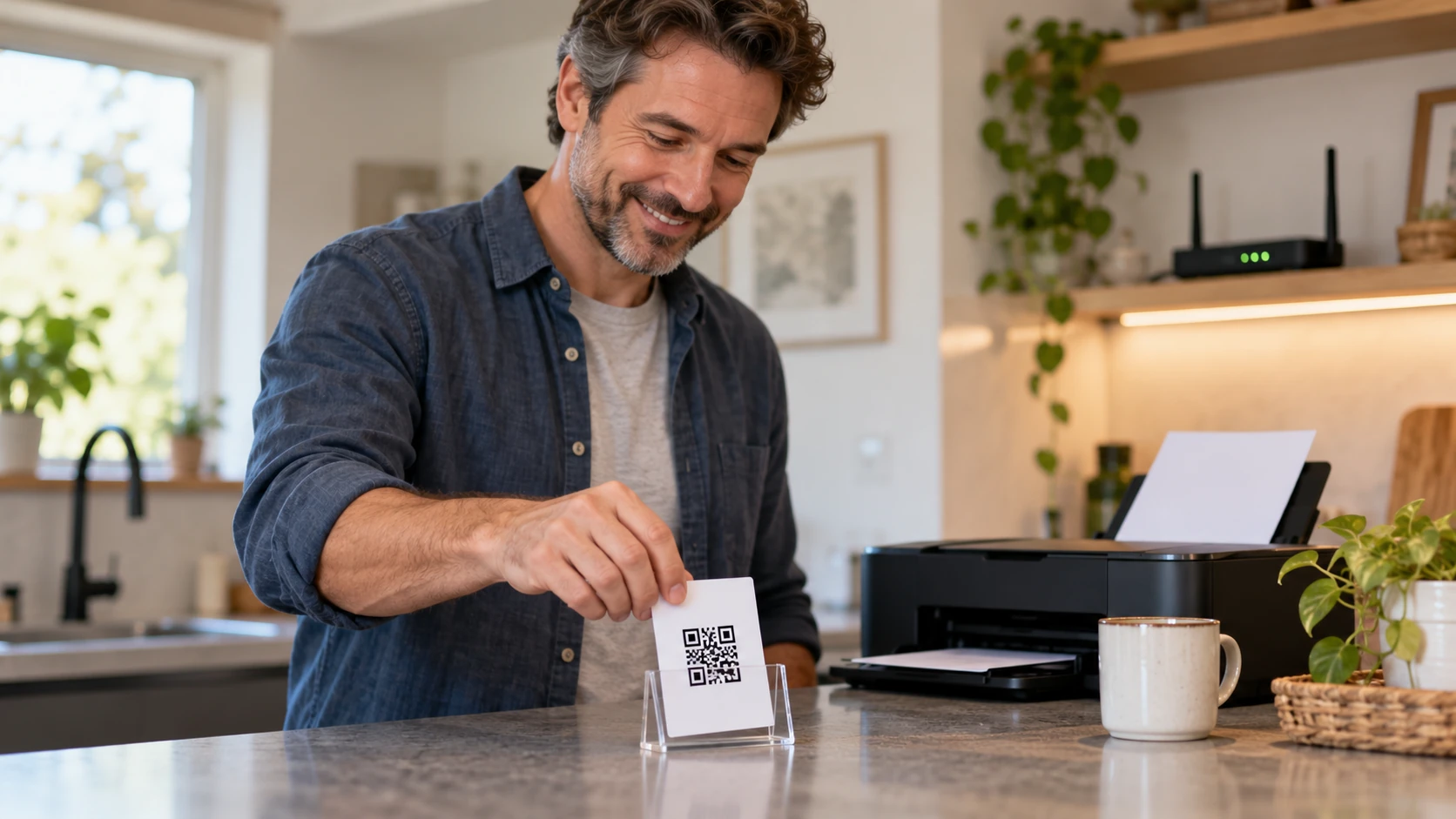
Make the reprint painless. Put the card in a small frame or stand so you only replace the paper insert, keep the generator open in a bookmark, and print two copies so a spare is ready. If you share the Wi-Fi details in a welcome message or a house manual as well, update them on the same day so the card and the message never disagree.
Make the Codes That Can Change Dynamic
The Wi-Fi code stays fixed, but a menu, house guide or review link can live behind a dynamic VISU QR code that you edit later without reprinting.
Where to Put the Card: Home, Rental, Café and Office
A good spot is one where people already stand still with their phone in hand, close enough to scan without stretching, and with steady light.
At Home
The fridge door or the hallway near the entrance both work. Guests usually ask for the Wi-Fi in the first minutes of a visit, so the card should be visible before they sit down.
In a Holiday Rental
Put one card by the entrance, where guests stop after opening the door, and another in the welcome book or next to the router. A card near the router also helps guests find the rooms where the signal is strongest.
In a Café or Restaurant
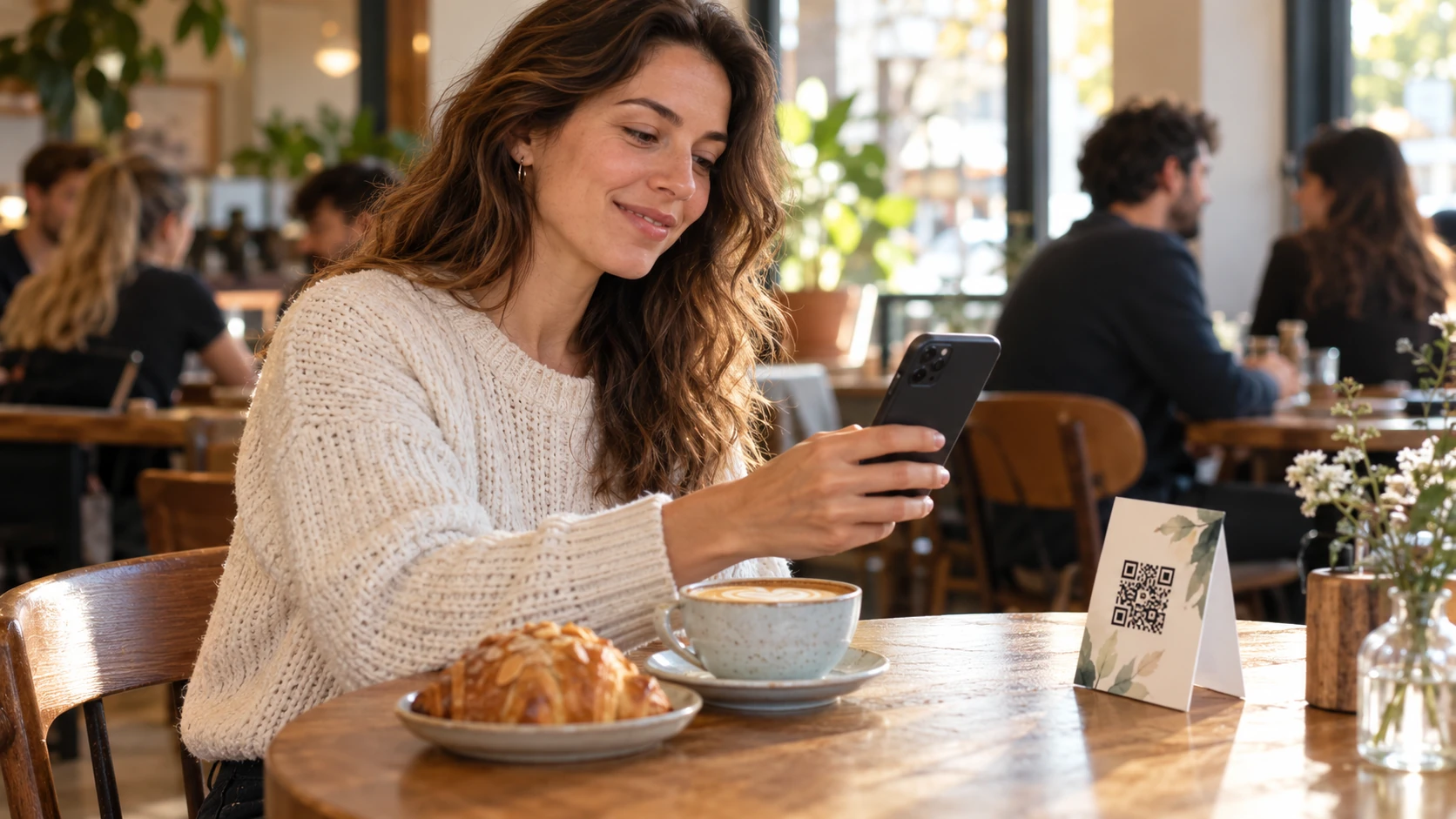
Small table tents on every table spare the staff from repeating the password all day. A card by the register catches takeaway customers. Avoid sticking the only copy on a window facing the street: the password ends up readable to everyone passing by, and the network may not reach the sidewalk anyway.
At an Office Reception
Keep the guest network card at the front desk or in meeting rooms, never near desks where staff work on the main network. If visitors need more than internet, such as a building map or a visitor policy, that belongs on a separate page linked from a second code.
Printing It So It Scans the First Time
Most scanning problems with printed codes are printing problems. A few habits avoid them.
- Size it for the distance. A card on a table is scanned from close up; a poster on a wall is not. Our QR code size calculator gives a minimum size for the scanning distance you expect.
- Leave a clear margin. The QR code standard calls for a blank "quiet zone" four modules wide on every side, where nothing else is printed. Do not let a border, logo or text touch the code.
- Dark on light, never the reverse. Print the code dark on a white or very light background. Some scanners struggle with reversed, light-on-dark codes, so dark on light is the safe choice.
- Avoid glare. Glossy lamination under a ceiling light can hide part of the code. Matte paper or matte lamination works better.
- Add a line of text. "Point your camera here to join our Wi-Fi" plus the network name tells people what the code does. Printing the password as well helps guests whose phone or laptop cannot scan, but remember it makes the password readable even without a QR reader.
- Test the printed copy, not just the screen preview. Printers sometimes blur fine details, especially on small cards.
How Guests Scan It on iPhone and Android
On an iPhone, guests open the Camera app in Photo mode and point it at the code. A prompt appears at the bottom of the screen, and tapping it starts the join. Apple also includes a Scan Code control that can be added to Control Center.
On Android, the experience depends on the phone maker. Most recent Android cameras read QR codes directly; if yours does nothing, use a QR reader app. Recent Android versions also work in the other direction: in Settings, under Network & internet, then Internet, tapping your network and then Share shows a QR code on screen for a friend to scan. That is handy for a single visitor, but a printed card is better for a steady flow of guests.
When the scan works but the connection fails, the cause is usually one of these:
- The name or password changed on the router after the card was printed.
- A typo in the network name, often a capital letter or a trailing space.
- The guest is out of range. The card works anywhere, but the network does not. A code in the garden may need a guest network that reaches the garden.
- The network is WPA3 only and the guest's phone is older. Mixed WPA2/WPA3 mode solves this.
- A sign-in page follows. If your network uses a captive portal, the page where guests accept terms or enter an email, the code only gets the phone onto the network. The sign-in page still appears afterwards.
One Code, One Job: Add a Second Code for the Rest
A QR code holds one thing. A WiFi code cannot also open your menu, your house guide or your review page. Trying to squeeze everything into one code is a common source of confusion, and the answer is simple: print two codes side by side, each with a short label.
The second code is where you get flexibility. The Wi-Fi code has to stay static, but a menu or a house guide changes often. A dynamic QR code points to a short link whose destination you can change after printing, and it shows how many times it was scanned. Good candidates for the second code:
- Holiday rentals: a house guide with check-out time, trash days and local tips.
- Cafés and restaurants: the current menu, or a Google review link. Our Google review QR code generator builds the review link for you.
- Offices: a visitor page with the building map, parking and the host's contact details.
The WiFi QR code generator has a field for exactly this: paste the link for the second code and, with a free VISU account, it becomes a dynamic VISU QR code to print next to the Wi-Fi one (dynamic codes count toward your plan's limit).
Give Your Second Code Somewhere to Go
A free VISU Link page holds your menu, house guide and contact links in one place, with a QR code ready to print.
Frequently Asked Questions
Where should I put a WiFi QR code for guests?
Where guests stop with their phone in hand: by the entrance or the fridge at home, by the door and in the welcome book in a rental, on table tents and at the register in a café, and at reception in an office. Avoid windows that face the street.
Should guests use my main Wi-Fi network?
Preferably not. A printed code shares the password with anyone who photographs it, so point it at a guest network kept separate from your computers, smart devices, cameras and card machines.
Why does the code open a join prompt but fail to connect?
Usually the network name or password in the code no longer matches the router: a changed password, a capital letter, a trailing space or the wrong security type. Older phones also cannot join a network set to WPA3 only.
How often should I change the guest Wi-Fi password?
Whenever the code may have leaked, such as a readable photo posted online, and otherwise on a schedule that suits you, for example between rental stays or once a season. Each change needs a new printed code.
Can one QR code connect guests to Wi-Fi and open my menu?
No. A QR code holds one thing. Print the WiFi code and a second code for the menu or guide side by side, each with a short label saying what it does.
References
- ZXing wiki: Barcode Contents (Wi-Fi network config)
- NSA: Best Practices for Securing Your Home Network (PDF)
- Apple: Scan a QR code with your iPhone camera
- Android Help: Connect to Wi-Fi networks on your Android device
- DENSO WAVE: QR Code area and quiet zone
- Wikipedia: Wi-Fi Protected Access
- Wikipedia: Service set (SSID length)
- Wikipedia: Captive portal